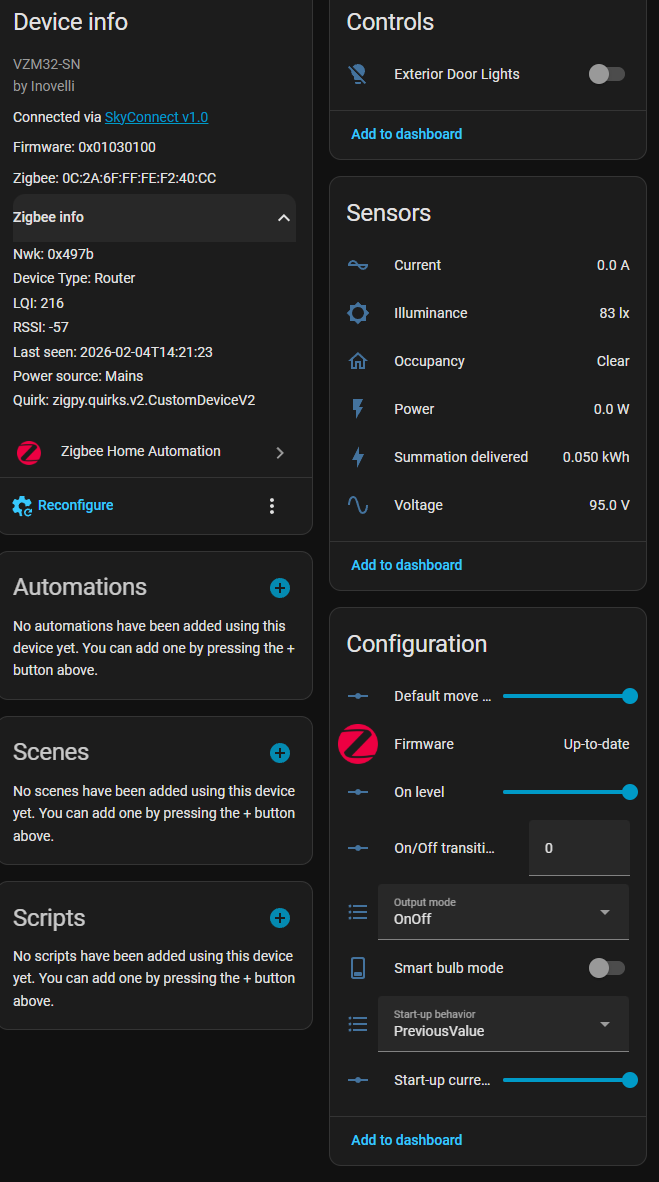
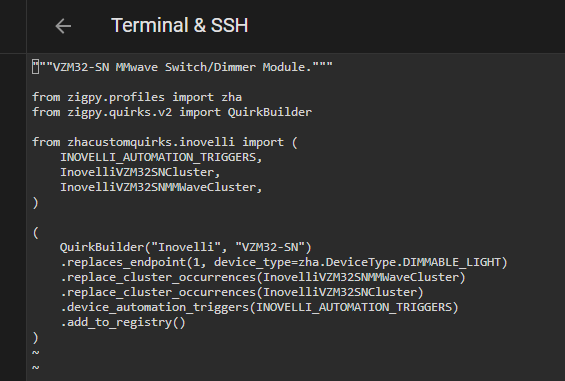
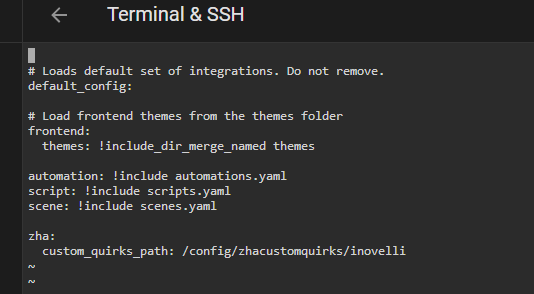
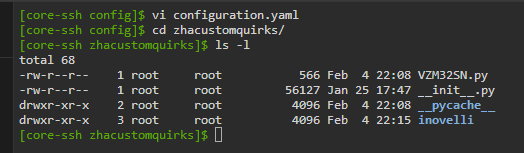
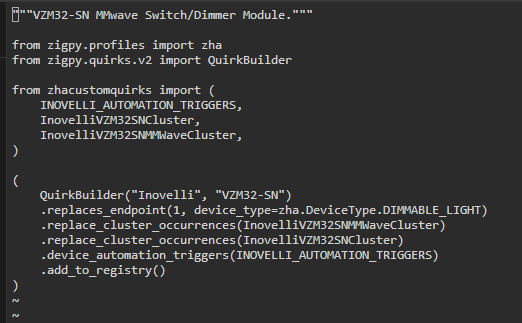
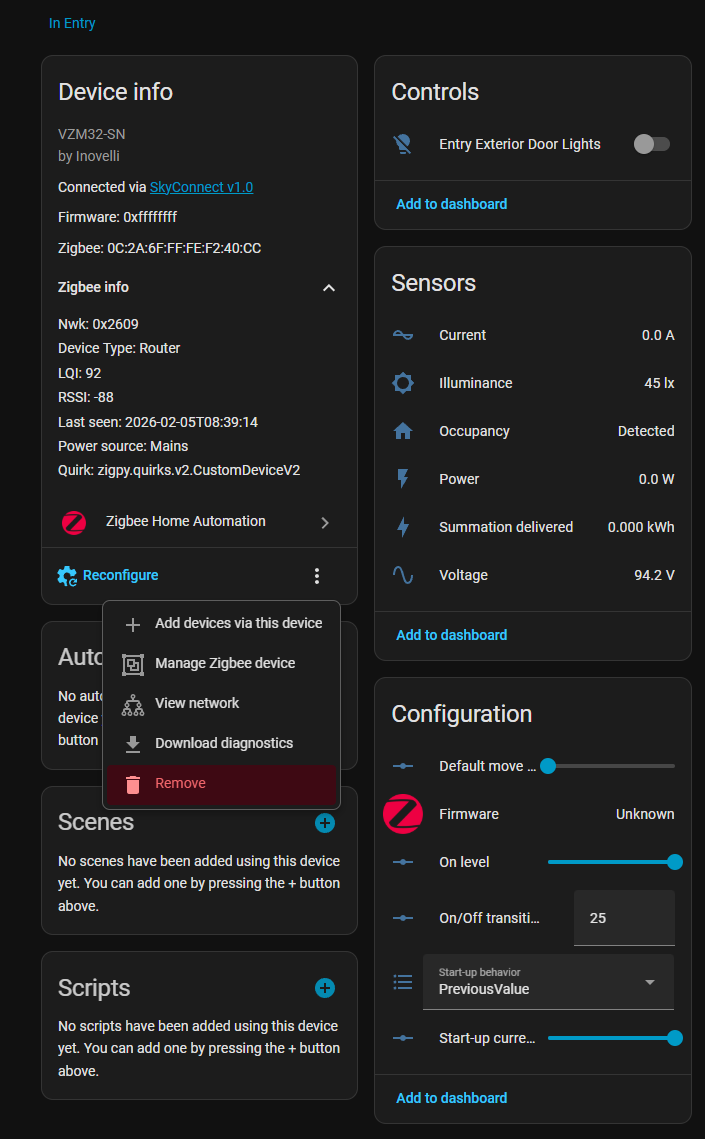
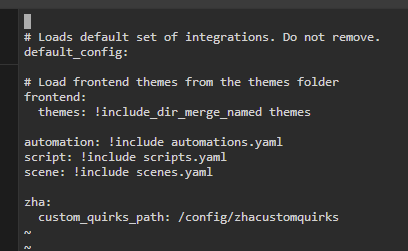
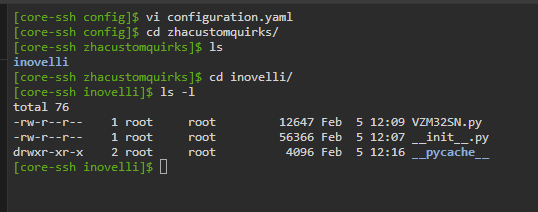
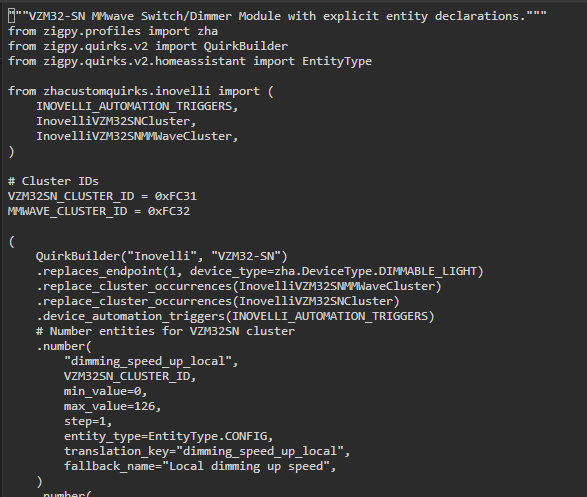
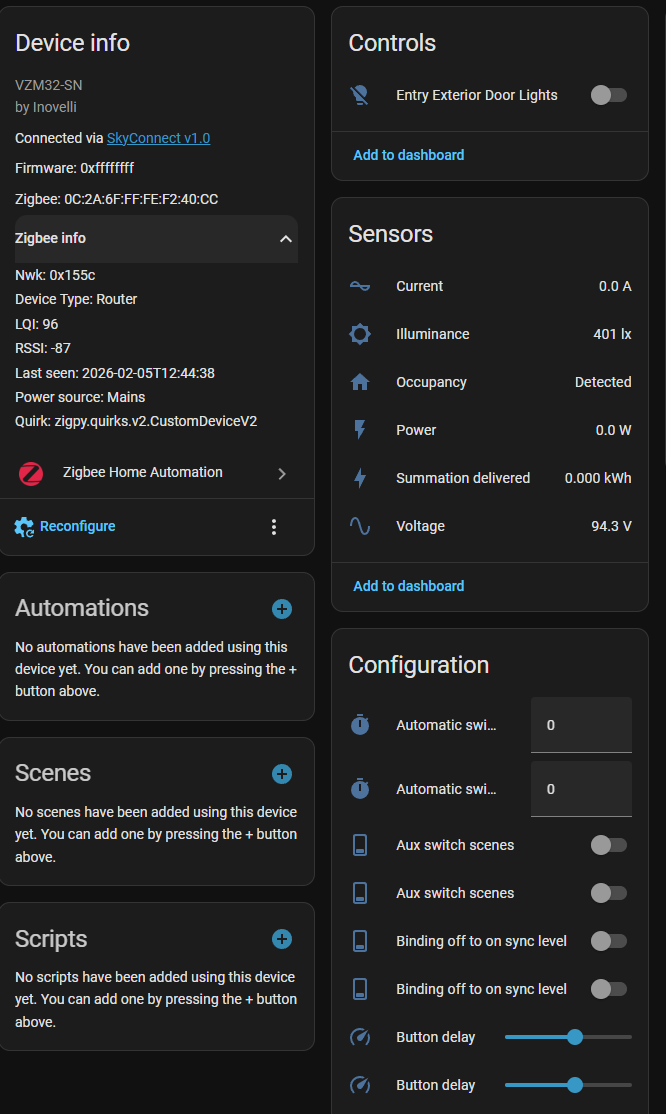
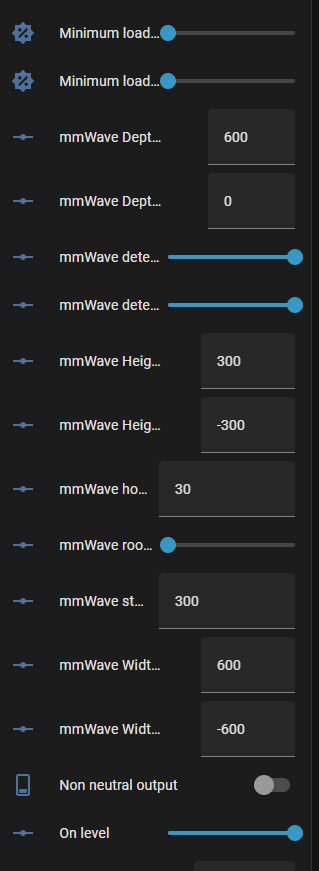
For reference, I did not have a custom quirk folder prior to starting the instructions. As such, I am using the zhacustomquirks and inovelli subfolder as created in the instructions. I checked the VZM32SN.py file and it references the zhacustomquirks.inovelli path as stated in the default instructions. I have also restarted home assistant multiple times.
You didn’t say specifically, so I’m going to ask. Did you add the custom quirk path to configuration.xml? There is an entry needed there for HA to know to use that custom quirk directory, and if you missed that in the instructions, the custom quirk will never load.
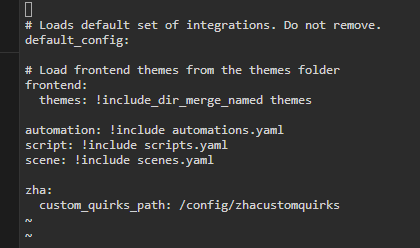
It seems like the instructions on the web site changed at some point, and now I feel like they are not giving correct instructions. I have the zhacustomquirk folder and the line in my configuration.xml but it’s just zhacustomquirks, not the inovelli path. So I have this:
zha:
  custom_quirks_path: /config/zhacustomquirks
and then this at the beginning of the py file:
from zhacustomquirks import (
    INOVELLI_AUTOMATION_TRIGGERS,
    InovelliVZM32SNCluster,
    InovelliVZM32SNMMWaveCluster,
)
and it works fine. Oddly, the web site now tells you to create the config with the inovelli path, but then technically still tells you to put the files in the root of the zhacustomquirks folder. I think at some point the instructions were updated, but not completely (maybe). So I can’t tell now if what you did will work or not. As I said, I have those files in the root of the zhacustomquirks and things work fine. So someone else is going to have to validate whether the instructions on the web site are right (in which case you didn’t quite follow them) or if there are inconsistencies.
Are there any other basic Home Assistant setup steps that need to be done to enable custom quirks in the first place? I now have what I think would be things set up to support either the Inovelli subfolder or not, and yet it’s still not working. I have removed the device from ZHA and repaired it with no change.
And just to confirm I am removing and repairing correctly, I am selecting the Remove button as shown below before repairing to ZHA. The Firmware shows as Unknown for a couple of minutes, but all of the other settings (I have the light set to 1% right now as I don’t want it going on and off by the presence sensor while I am trying to get this to work) persist when I remove and repair the switch.
Finally, yes, I am restarting Home Assistant after I have been making any changes to the files.
Anything else that I might be missing? I am very new to Home Assistant, but pretty good at following directions, ha ha.
Documenting here as there was another thread on this topic but the user ended up switching to Z2M rather than solving it.
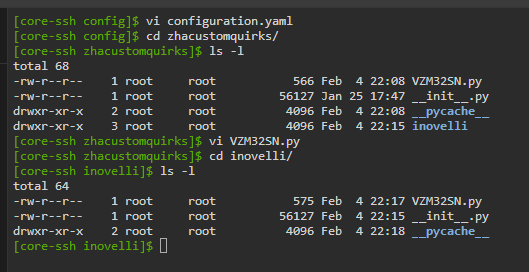
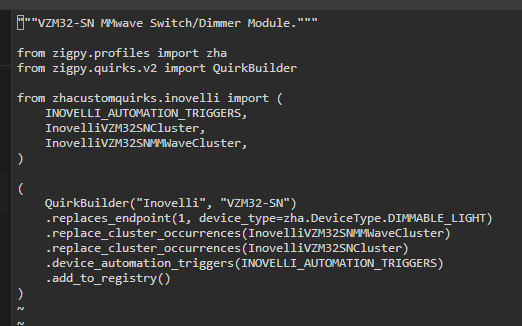
I decided to redownload the .py files and try a couple of combinations. Here is where I am at now. I am getting more configuration items, but not sure that the Custom Quirk is actually correctly applied.
configuration.yaml has the path to /config/zhacustomquirks. This conflicts with the instruction page’s information in the Overview section, but does appear to be what is done in the step-by-step instructions. @EricM_Inovelli for awareness of instruction updates (the instructions page says that you did update it earlier this week).
Both .py files are located in the /zhacustomquirks/inovelli folder. This again seems to conflict with the instructions in the overview, but is what is instructed in the step-by-step section.
I removed the device, deleted all of the pycache folders and restarted.
After repairing, I am now seeing things different. The Quirk still shows as zigpy.quirks.v2.CustomDeviceV2, but I see far more parameters in the Configuration area. However, most of these are duplicated for some reason (I think I saw another thread on that issue).
Ok, I think this might be the final update unless someone with more knowledge on why things work the way they do could add to the commentary.
Despite the fact that the value of the Quirk in the Device Info box is the same between my screenshot in my first post compared to the one above, the fact is that I am now getting the parameters that I was missing (including a couple of duplicate ones).
I don’t think I really did anything today special to fix the issue, but I did delete all of the files and redownloaded them. There is still the discrepancy in the quick instructions at the top of the page vs. the step-by-step when it comes to the inovelli subfolder, but I followed the commands from the step-by-step version again this afternoon after deleting the zhacustomquirks folder and starting from scratch.
My main goal with all of this was to access Parameter 110 - Light On Presence Behavior and I now have access to that value!
@alwaysCT Sorry for the troubles you had. I double checked the instructions and noticed some clean up that could solve potential issues, although they worked for me before the cleanup (when I went through the step by step). After the clean up, I ran through the step by step again as well as the block at the end of the document and everything seemed to work.
I did notice the double entities on a lot of the non-mmwave parameters, and I think that might be because one of my PRs merged since the quirk files were created. I’ll have to check on that, but it looks like both entities work fine so maybe the dupes could be hidden?
I think the strange thing is the quirk name in the Device Info box is the same whether the custom one is used or not so you need to check the entities to see if the quirk got applied (you will see the extra mmwave ones).
The Step-By-Step section was fine I think the main confusing thing in the instructions was that the Overview (for advanced users) section seemed to be a little different in how it didn’t mention the inovelli subfolder in step 3 (I see you have updated it now, but I think that was one of the inconsistencies that I had noticed earlier).
I suspect that my issues the first time around was just a fluke. While I did post screenshots of the file contents over the past couple of posts, I didn’t dig into the init file too much. I wonder if just downloading a new copy (which isn’t something that I did until today) was what solved it.
I saw a couple of people who had reported the same issue in researching before I created this thread. One of them switched to Z2M before figuring it out and the other I think ended up doing what I did and just started over. At least now if anyone comes across this they should be in a better spot.
I assume the below looks like your Quirk being picked up. Not sure why the Quirk name in the device info section is the way it is (it’s still the same as the screenshot earlier). Hopefully they merge your change soon though! I have a couple of these switches that I want to deploy in places where I don’t actually want the presence sensor controlling the light and getting access to that parameter was holding me back. Now it’s time to get things switched out!