I installed 20 of these, got them setup, and have been happy with them. Recently purchased some additional ones and saw that there are now 4 detection areas.
What’s the best practice for configuring the areas? When there was only one, i basically stood against the wall opposite the switch and adjusted the distance, then did the same for left and right. This was a tedious process, was wondering if someone else has a better way.
When the additional zones were added, do they have defaults? Do they need to be zeroed out if we don’t plan on using them?
The switches have always had 4 detection areas, they just weren’t exposed to hubs. We just added support to control the other areas to Z2M in the most recent release.
If you only want to configure 1 area (Area 1), you don’t need to make any changes since that’s what is configured with the parameters that you previously had available. The other areas are zeroed out by default.
Any issue with the areas overlapping? If I wanted area 1 to be the entire room to trigger some automations (lights/fan) and then move to my desk (area 2) in the far corner and have my monitors turn on? Or do the two areas need to be outside of each other?
No issues with overlapping. My kitchen is setup similarly. Area 1 covers the whole room, Area 2 covers the sink and the counter next to it which has it’s own dedicated lights.
Completely independent. No detection will occur inside any interference area. You could use all four of them with only a single detection area for example.
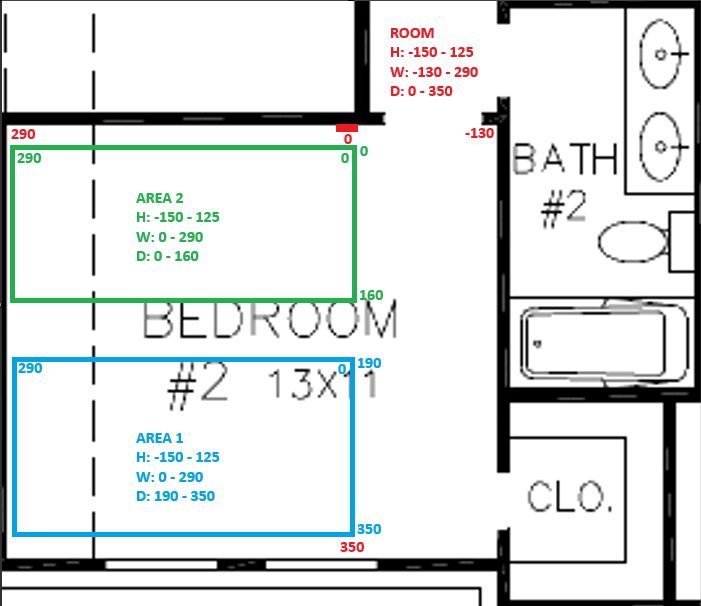
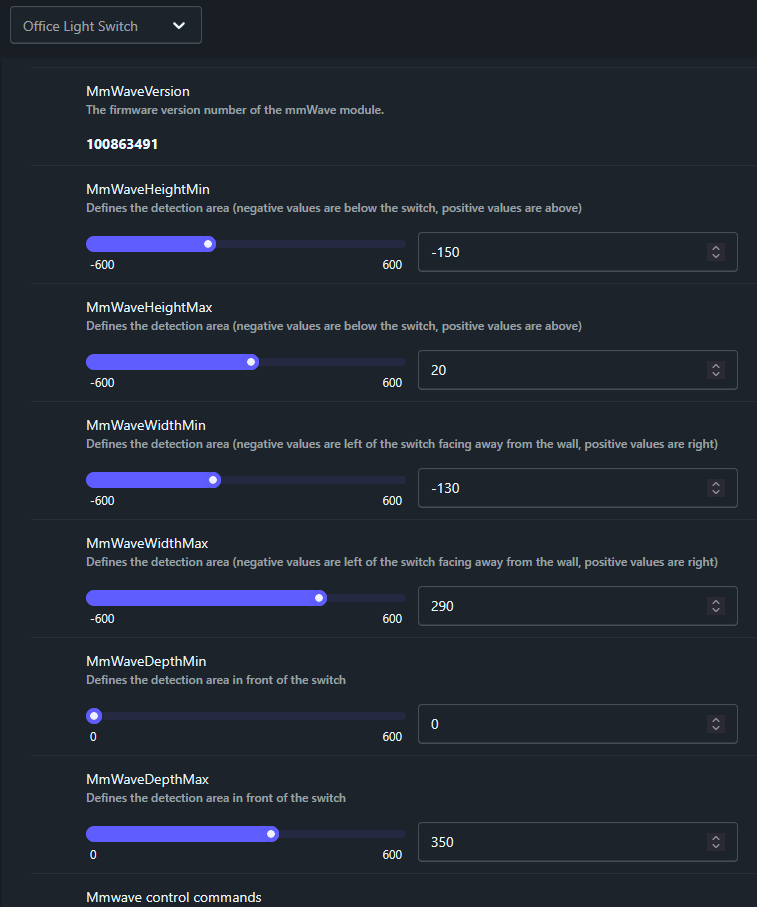
I stood in front of the switch and placed a laser distance measuring tool directly below the switch and aimed it at the wall to my right and set that as the width min (left of the switch). Rotated the laser distance measure 180 degrees to face the wall on my left and set that as the width max (right of the switch). I then moved out of the way and shot the laser to the wall opposite the switch and set that to the distance max. Measurements in red. I understand that the switch isn’t able to see full 180 degrees, I was just trying to ballpark the measurements and size the room better than the default values. If there is a flaw with this method, please let me know.
I am trying to make define two areas for mine and my wife’s L desks, detection bounds for each area are labeled. Dimensions for each area are labeled inside the area in the respective color.
I have two questions:
1) Does my understanding of these coordinates appear to be correct?
What is the procedure to update the areas?
When I started, all the areas were null and it took some weird combination of reconfiguring/interviewing/restarting Z2M to get the areas to update from nulls.
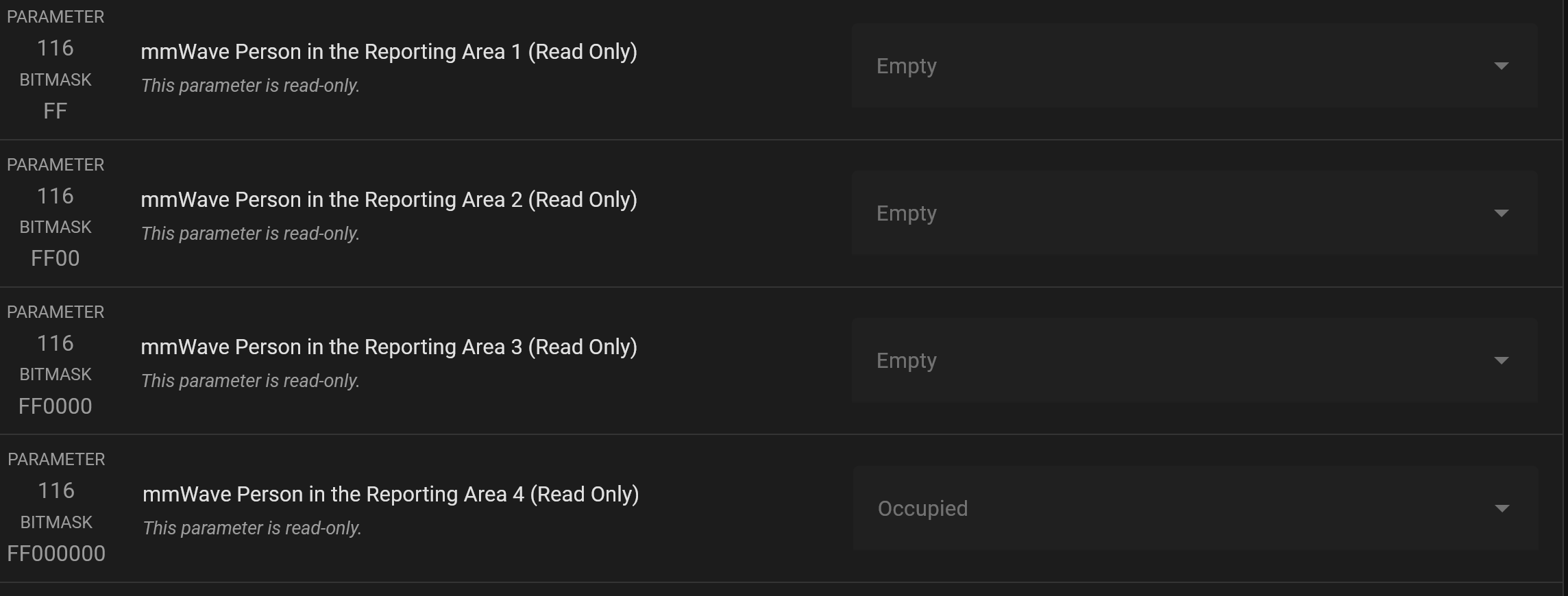
When I got these two areas setup, area 1 is stuck on occupied, and area 2 is stuck on clear. I have occupied both areas to try and get them to change state, and left the room and shut the door for 10 minutes with no change.
I have tried every combination of the reset detection area, query areas, and reset mmwave sensor commands along with the apply button commands that I can think of. The areas are still stuck in those states and can’t seem to get them to update either way (clear or occupied).
The mmWave settings for the room itself were working fine long before I started messing with the areas, now the room shows occupied because area 1 is stuck on.
So that leads me to believe there’s 5 separate areas (main, area1, area2, area3, area4) each with their own occupancy entity.
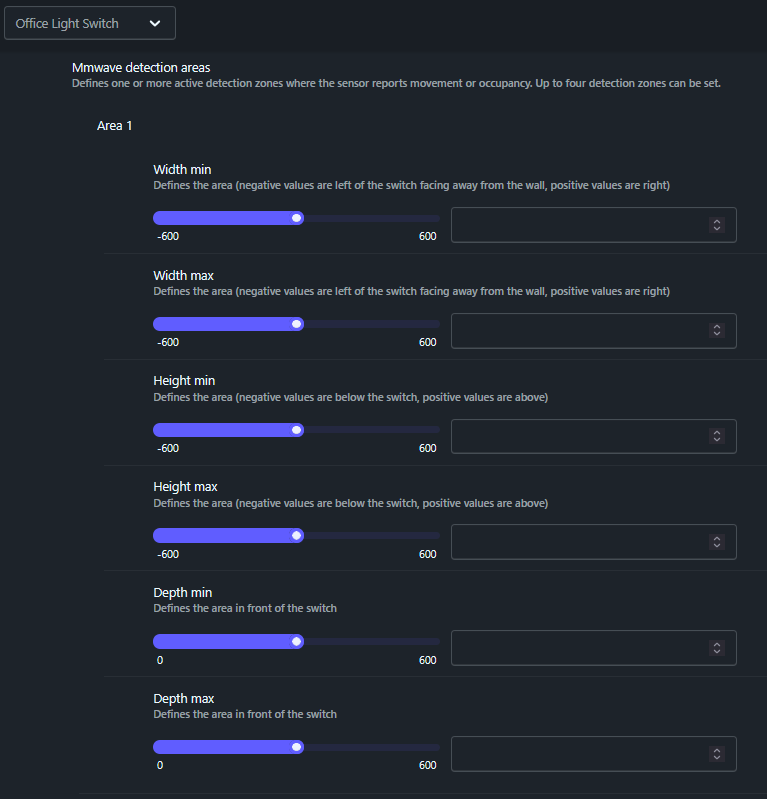
I factory reset a switch and added it back to Z2M, and set the mmWave ranges in the main section (not one of the 4 areas). The main occupancy sensor and the one for area1 both update at the same time. This is a factory reset switch and I have not setup area1 yet, you can see there are no values in the screenshot above.
If there are only 4 areas, what is the purpose of the other mmWave range settings that are not under the individual areas?
There are only 4 different areas with their own occupancy entity. There is a separate overall occupancy entity that is enabled whenever any of the areas are enabled.
They expose Area 1 via basic attributes rather than the more complicated way of controlling the other areas which other hubs will use.
What does it take to update the areas? If I just change the values and click on apply the occupancy for that area doesn’t change. I have also tried restarting the mmWave sensor and interviewing the switch.
@EricM_Inovelli you may want to update the documentation for Z2M with some of the back and forth from this discussion. Controlling and using the 4 areas isn’t intuitive.
Just to confirm in my own words: Zone 1 and the old bound configs are the same and map to the same underlying entities/params. I also can set zone 2-4 outside of the old bounds I.e. zone 1 is 0,10 and zone 2 is 11-20.
One question though is the automatic switch with occupancy is that tied to zone 1 and only zone 1?
Ok thanks for confirming that. It’d be nice to have it set to a particular zone, but that probably will clutter that menu. Maybe have a binary switch per zone to whether it is to be included in that automatic on/off.
Use case is I have 2 switches in my kitchen and due to the layout and sight lines I need two switches. One is playing double duty with some accent lights. Would be nice if I could have the accent lights turn on/off automatically without an automation when I’m very close but still have a separate zone for whether the whole kitchen is occupied. Not the hardest to just make an automation to handle it but pure zigbee would be cool.
I also wanted to clarify how the occupancy entities work on HA. For each switch there are 5 occupancy. For example a switch named office_lights_switch would have:
binary_sensor.office_lights_switch_area1occupancy
binary_sensor.office_lights_switch_area2occupancy
binary_sensor.office_lights_switch_area3occupancy
binary_sensor.office_lights_switch_area4occupancy
binary_sensor.office_lights_switch_occupancy.
The area entities are clear, but is the one that just says occupancy (binary_sensor.office_lights_switch_occupancy) is a OR operation of the area occupancies?