Z-Wave Motion Switch • Project Linus • Bug & Enhancement Thread

Enhancement Request: Set Lux threshold to trigger mmWave Load Behavior.

Objective: Enable the switch to natively support presence driven load actions only when required by the ambient light within the room.

Description: I want the advantage of presence driven lighting automation, but I want set the threshold for when the load behavior is triggered. This way when there is enough ambient lighting in the room (above threshold/Daytime) to not require supplemental lighting, the lights will remain off regardless of occupancy. Alternately, when the ambient lighting in the room does require supplemental lighting (below threshold/nighttime) the lights will remain on based on occupancy.

Alternative: Without this being native on the switch, I’ll need to create custom automations in Home Assistant to accomplish this, adding extra complexity and latency to the process.
1 Like

Enhancement Request: Set Lux threshold to set starting dimming level.

Objective: Enable the switch to natively support alternative dimming level based on the ambient light within the room.

Description: I want to have the ability to set a Lux threshold which will change the startup dimming level. In the day time (above threshold), I’d expect the switch to follow the default dimming behavior. Once the room is dark enough (below threshold), I’d like the light to start at the alternate dimming level. Ideally set to a lower percentage than the day time to avoid the Linus ‘flash bang’ effect. Note: This will be independent of the presence detection and other timing related switch functions.

Alternative: Without this being native on the switch, I’ll need to create custom automations in Home Assistant to accomplish this, adding extra complexity and latency to the process.
2 Likes

I’m using the proper Innovelli mmWave Red Series Driver for it.

I figured it out. Changing the setting in the driver itself seems to have no effect. So there might be a bug in the edge driver itself. I switched to another driver that lets me write parameter values directly to the switch and changing it there is taking effect as expected.

More details on bug I mentioned earlier.

dev:15152026-01-20 09:08:28.565 AM info Fan Light (Radar) Config Report: P101=156 (mmWave Height Min: 156mm) [P:101 V:156 D:-600]
dev:15152026-01-20 09:08:28.561 AM trace Fan Light (Radar) zwaveEvent(ConfigurationReport(parameterNumber: 101, size: 1, configurationValue: [156], scaledConfigurationValue: -100))
dev:15152026-01-20 09:08:28.558 AM debug Parsed {"cc":112,"cmd":6,"ep":0,"values":[{"request":{"args":[101],"command":"endpoint.invoke_cc_api","commandClass":112,"endpoint":0,"messageId":"expected20540","methodName":"get","nodeId":279},"response":-100}]} to ConfigurationReport(parameterNumber: 101, size: 1, configurationValue: [156], scaledConfigurationValue: -100)

I have a Hubitat running zwavejs with the Inovelli driver 2025-11-25

From logs you can see I set the floor to -100 and then it immediately reads back as 156, I have seen this behavior on every one of my red mmWave switches. The switch is using -100, but if I save preferences a 2nd time it will now push 156 to the device and cause the motion one to be nonsense with floor > ceiling.

@EricM_Inovelli (tagging, since this issue hasn’t yet been acknowledged, and does seem to be very consistent)

I just set up the first one out of many in Home assistant and I am not seeing many reporting options available under the device settings related to the mmWave sensor.

Only one sensor that shows motion and under diagnostic I enabled “mmWave Person in reporting area 1-4” where reporting area 4 only seems to work.

Is there a way to see reporting of distance X,Y,Z for one or more people? It would be nice to be able to use something like Plotly to get a visual.

1 Like

This is from another thread ( VZW32-SN Red mmWave - floor / ceiling / depth parameters - #15 by ahnundh ), but mentioning it here since this appears to be a bug.

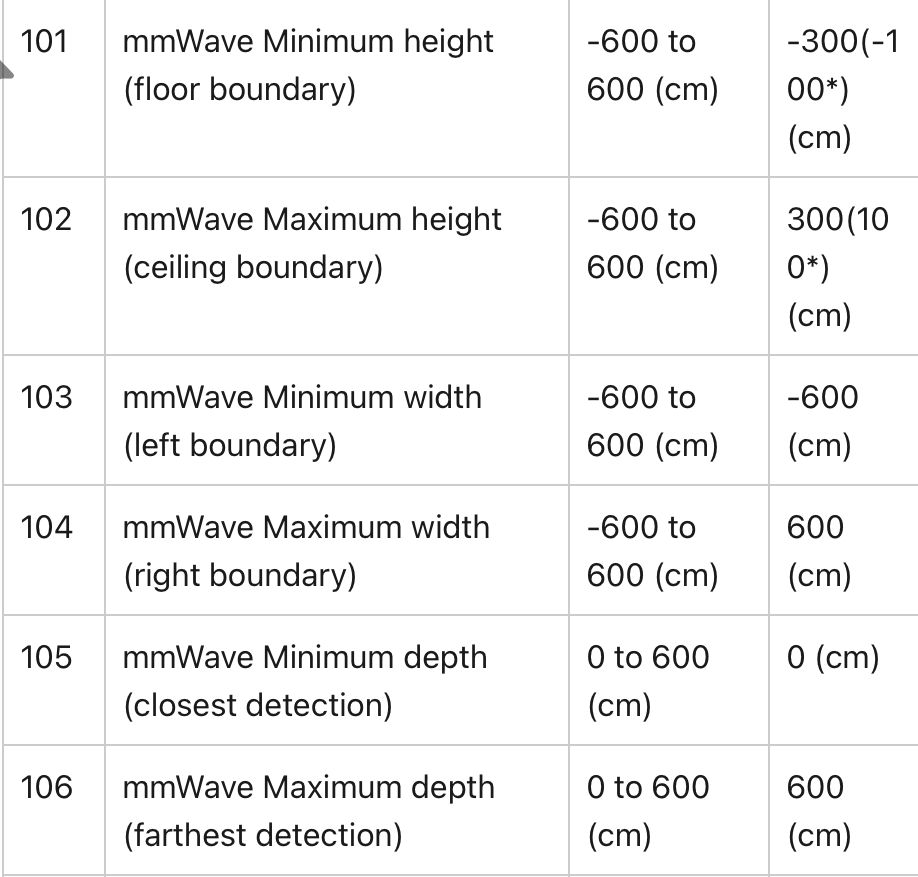
Changes to parameters 101 - 106 (the X, Y, and Z values for the sensor distances) seems to do nothing at all for some of us.

However, parameter 117 (Room Size), which is basically a series of presets that purports to write to parameters 101 - 106 – that works. I can select one of the pre-defined room sizes, and that most definitely affects the sensor.

But this is still a pretty big issue for me because no fine adjustments to the sensor are possible.

This is affecting me in Home Assistant, and another person in Hubitat. I’m using the Z-Wave JS UI addon.

2 Likes

I am looking into these P101-106 issues. The signed value of -100 actually does convert to 156 so that isn’t necessarily surprising to me. If the driver is taking that value and then writing it back then that could definitely be an issue.

1 Like

Are you able to go to the Zwave js UI and read the parameters back? If you set them then go back to the UI and read them back, are they reporting what you set them to? Press on the “GET” button with the parameter number you are wanting to see.

Using that Custom Configuration feature, I’m able to get values for P101 - P107, but I haven’t been able to successfully set a value. It always throws an error.

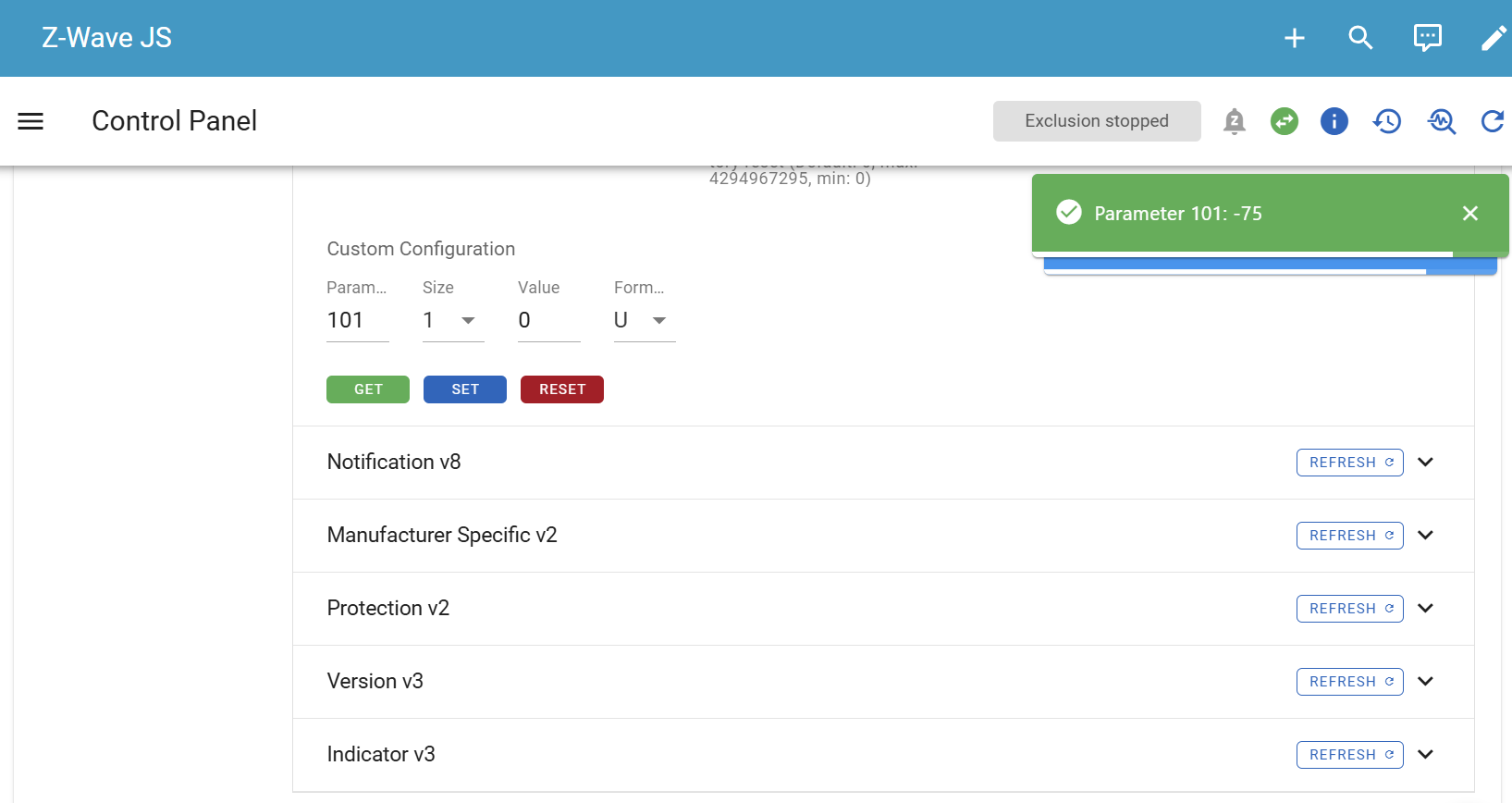
Here’s a successful get:

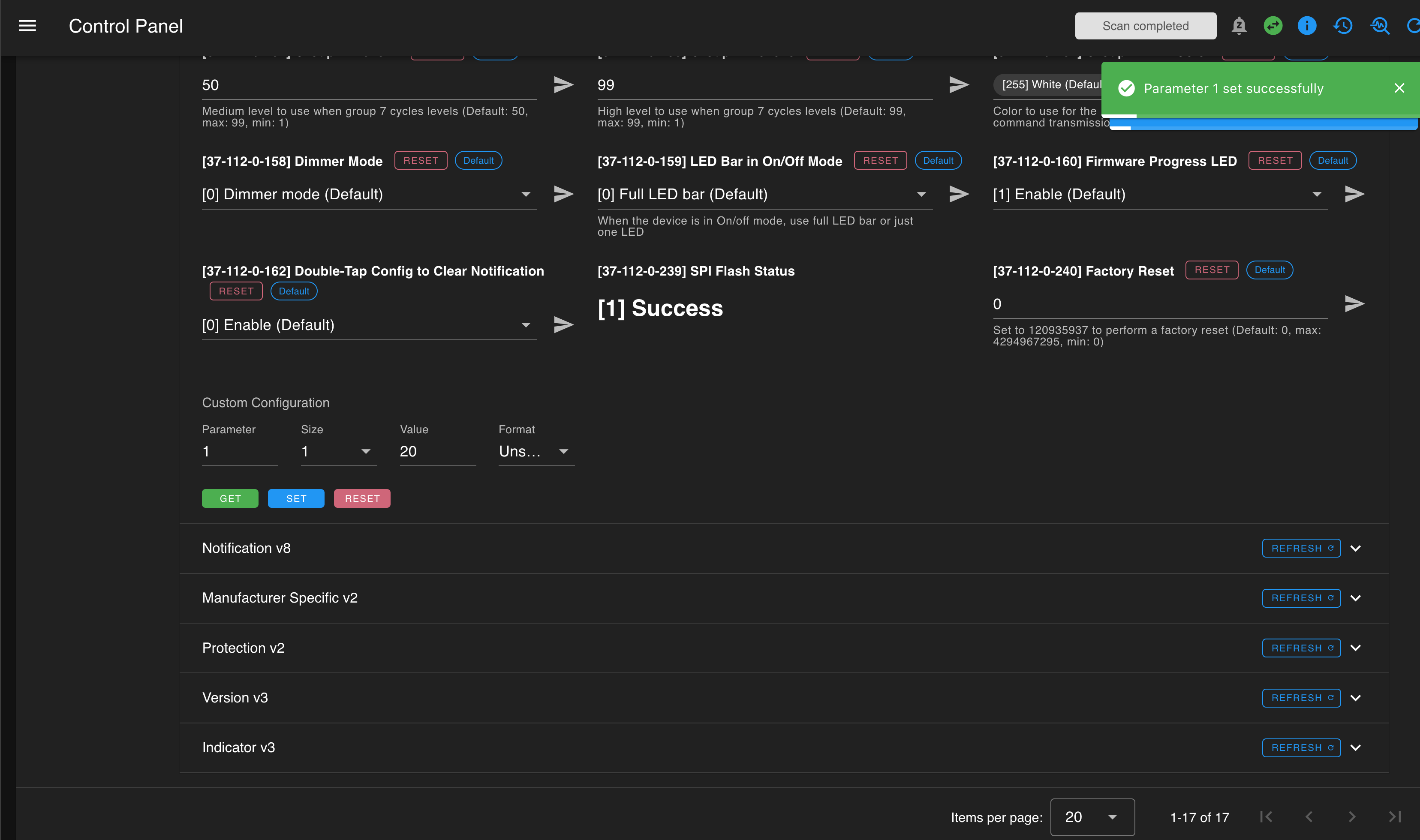
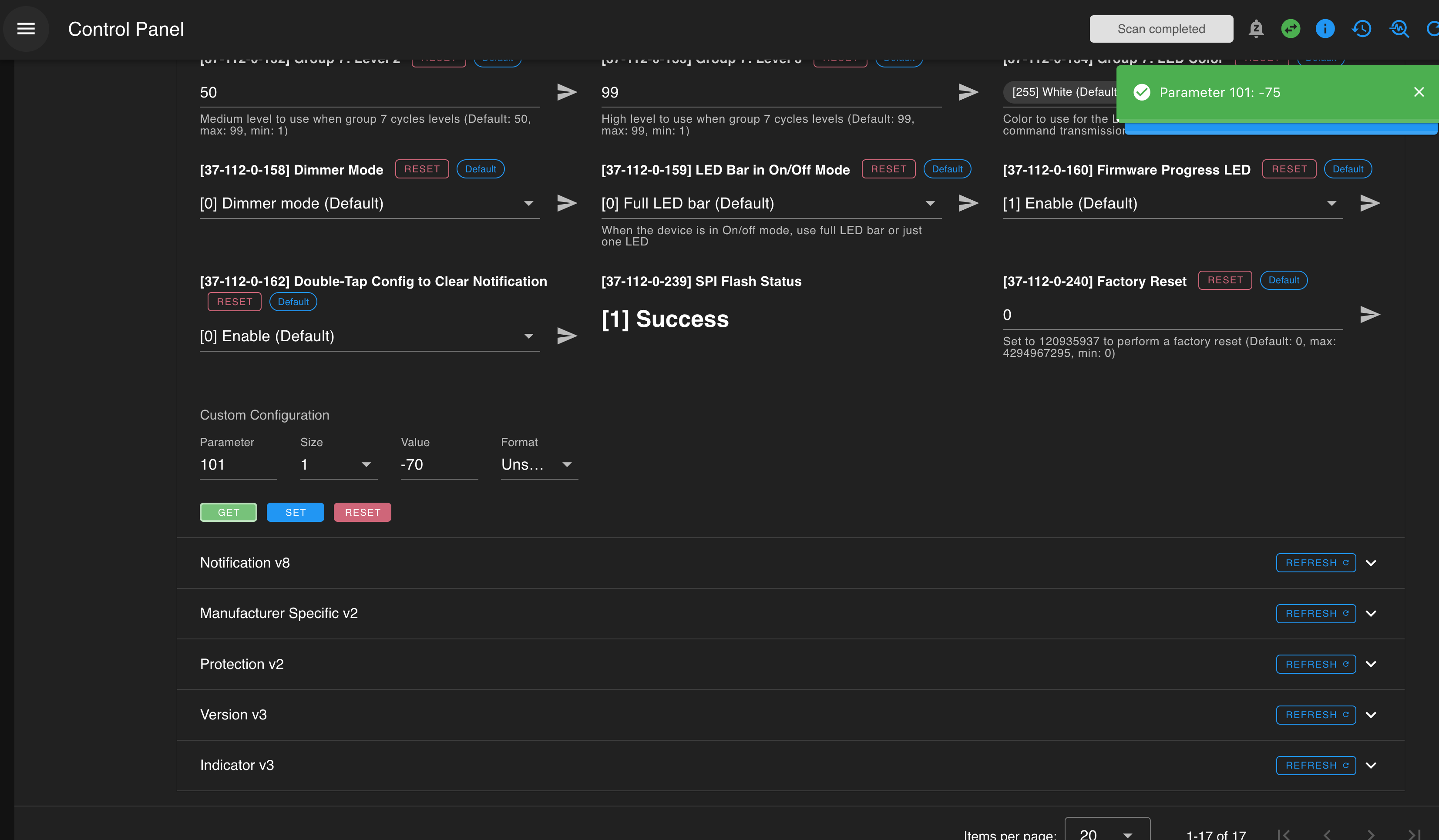
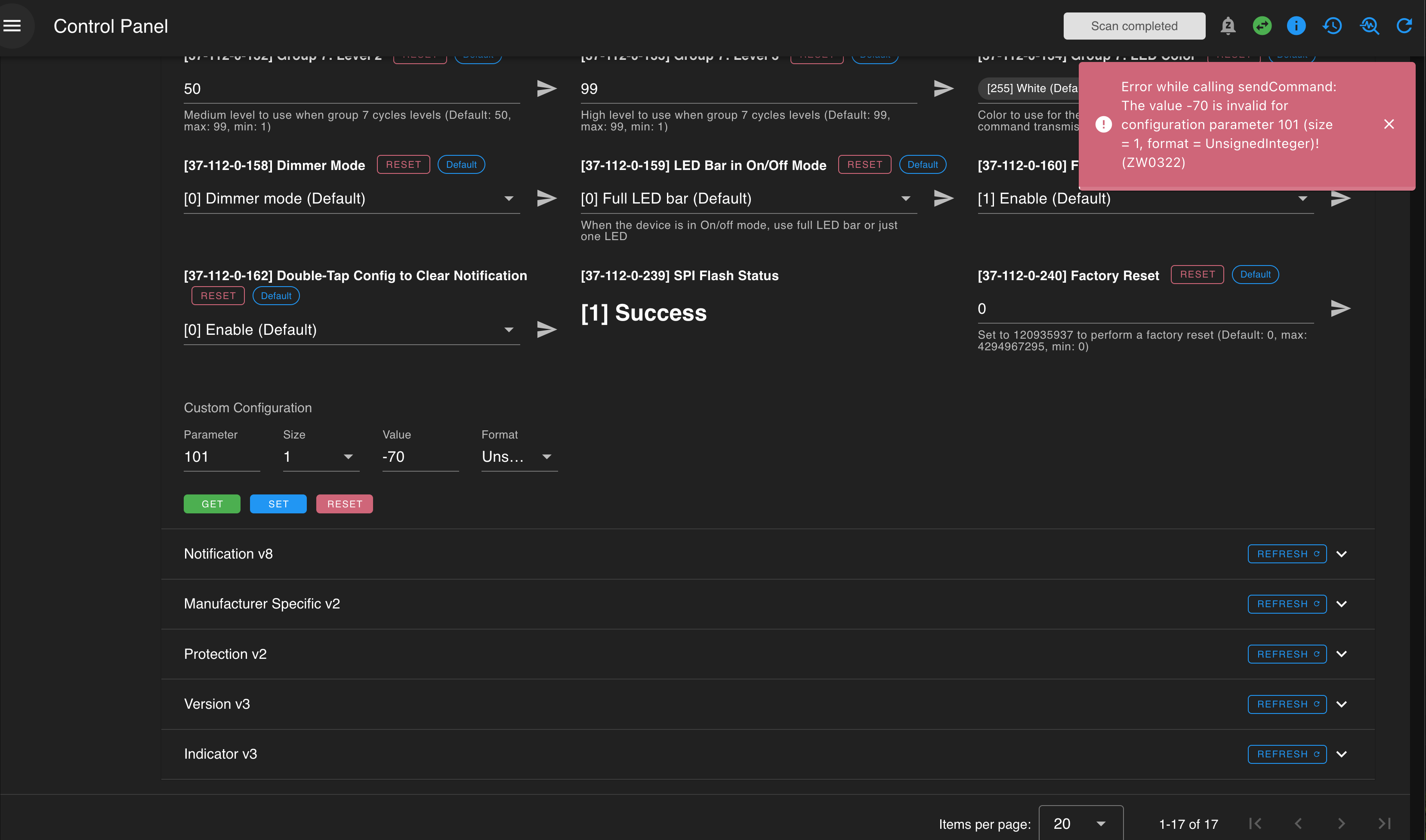
Here’s a failed set. This is just trying to change P101 from -75 to -70. I tried both signed and unsigned, and sizes 1 through 4; all throw errors.

Yet any other parameter, like P1, I can set successfully.

This is the relevant log item:

2026-01-21 18:21:12.731 INFO Z-WAVE: The value -70 is invalid for configuration parameter 101 (size = 1, format = UnsignedInteger)! (ZW0322) sendCommand undefined

I think this is revealing. There’s some underlying issue with setting these P101 - P106 parameters.

@peterscene They should be settable by changing the size to 2 and the Format to signed. I tested setting 101-106 with those settings and did not get the error. I am curious if you change the setting in the way that you have been (in Home Assistant) and then go back to the Zwave js UI and do a “Get” if it shows the values you entered in the HA UI.

Ah, yes, you’re correct: Size 2 Signed does work for setting P101.

I changed P101 to -50 in the Home Assistant device page, under the “Configure” button, as I have been doing. Switching back to Z-Wave JS UI, running the get command, it does indeed reflect the change: it returns -50.

Ok, I am still researching. If you change the detection area with the “Room Size” presets does it seem to make a difference in your detection area? I find it strange that there are some that 101-106 don’t seem to do anything, but changing the preset does.

Yes, changing the P117 Room Size parameter definitely changes the detection area. But P101 to P106 don’t do anything.

1 Like

I dont get the issues with logs throwing up errors in Hubitat, the current states reflect my numbers (sometimes slowly after a few refreshes). I changed a few values and watched logs and didnt see anything out of the ordinary. It just doesn’t respect the boundaries set. I have intentionally put it significantly smaller than the room, and I still get activations not only in the room, but also in neighboring rooms.

After some more testing, I am not sure changing the preset changes anything for me. I still get activations in the other room even when listing x-small. My room is small, 150 cm x 180 cm. I have a feeling that the settings are intermittently getting set.

I think I figured out the issue, at least for me. When using the default parameters/preferences page on hubitat, it does not always take the settings, including both the 101-106 XYZ OR room size. I have tried changing single settings at a time (i.e. just room size 117) or multiple at once (i.e. 101-106).

However, if I trigger just the single setting through the “Set Parameter” field, I was able to have it take the room size setting without an issue. I then tested, one by one, setting the XYZ, configuring/initializing each time, and it seemed to work as well. It was necessary for me to configure/initialize each time.

It looks like everything doesn’t get sent when trying to push too many settings at once. This explains how I was getting really odd behavior (i.e. further minimum depth changed but not maximum). Other fields seem to work fine, i.e. timeout always takes no matter what, independent of which method I use and set.

I hope I’m just doing something wrong because so far I’m disappointed with the dimmer. I have one in my living room and it will turn off the light with people sitting right in front of it. And then I have one in a small laundry room that will turn on if someone passes in front of its closed door. It seems that none of the parameter changes I make actually do anything, and on top of all that I have no way to even see the presence detection in hubitat.

I am having similar problem but at least I can see the presence detection. I wish there is a way to know what can I change to make sure that presence detection works as expected. I have installed 3 mmWave with 3 aux so far.

Also, it would nice to know to know how these measurements work? Maybe on a visiual

I don’t have a visual for you, but I can talk you through this.

These are the distances from the switch to each of those planes. You’re basically telling the switch what “box” to detect motion in” relative to where the switch is installed.

I found the easiest way, if you have the tool, is to use a laser measuring tool. Set it to metric mode, stand near your switch, and take measurements for each of these parameters as follows as if you are standing with the switch directly behind you…

101: Point it at the floor and record that measurement. Since it’s “under” the switch, make the value negative. If you have furry friends you want to NOT trigger presence, you might want to subtract 50-100cm or so.

102: Point it at the ceiling and measure. Use the positive value since this is “above” the switch. You may want to consider reducing this value slightly by 50-100cm or so if you have a ceiling fan since those will cause the mmwave sensor to detect motion.

103: Similar to the floor measurement, but this time point it to the left; again, since it is “left” of the switch, negate the measurement.

104: Measure to the right this time; positive measurement.

105: Usually you’ll want to keep this at 0, but if you wanted to push that imaginary “box” where presence detection starts further away from the switch, you can put a positive value here. Negative values won’t work (it can’t “see” backwards”)

106: Measure to the wall opposite the switch.

With any of these you can of course adjust for any weird geometry, but that’s the basic idea.

Again, if you have a laser measuring tool, it’s super quick and you don’t have to move much if at all to grab the 6 measurements.

I appreciate the explanation. I was thinking that detection area is not a box but based on your description, it seems like a box. I have just adjusted. Let’s if it will reduce detection area.

1 Like

I’ve installed 3 of these so far, and one of the switches is reporting 1W of power consumption when it’s off. Is there a way to calibrate the power monitor?